Organizations
Manage users and services across multiple workspaces.
With a Render Scale or Enterprise plan, you can manage all of your team's users, workspaces, and services in a single organization (or org):
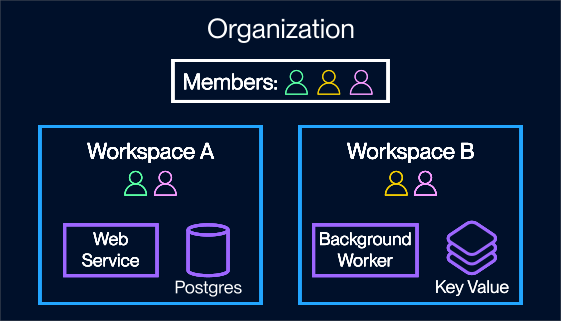
An org can contain unlimited workspaces at no additional cost. Each org member can belong to any combination of workspaces, based on the services they need to access. You can also add guests, who receive access to a single workspace.
You can integrate your org with your identity provider (IdP) to enable SAML single sign-on (SSO), along with member management via SCIM.
Creating an org
When you sign up for the Scale plan, Render automatically creates an organization with a workspace in the Render Dashboard.
If you upgrade an existing workspace to Scale, Render creates an org and designates that workspace as the org's primary workspace. The team member who performs the upgrade becomes the Org Owner, and all other workspace members become org members.
With an Enterprise plan, the Render team works with you directly to create your organization.
If you have existing Render workspaces, you can transfer them into your org for centralized management. Each member of each transferred workspace becomes a member of your org.
Adding workspaces
Creating a new workspace
Org Owners can create a new workspace by doing the following:
-
From your organization's Workspaces page in the Render Dashboard, click + New Workspace.
-
Provide a name for the workspace.
-
Set the workspace's privacy setting to Public or Invite-only.
- Public: Any org member can add themselves to the workspace.
- Invite-only: Only admins of the workspace can invite other org members.
-
Click Create Workspace.
You're all set! Render creates the workspace and adds you as its first admin. You can immediately start creating services and inviting members.
Transferring an existing workspace
To transfer an existing workspace into your org, reach out to our support team in the Render Dashboard. Each member of each transferred workspace becomes a member of your org.
Access management
The Org Owner role
During org creation, at least one member of your org is assigned the Org Owner role:
- On the Scale plan, the Org Owner is the team member who upgrades their workspace.
- On the Enterprise plan, the Render team assigns at least one team member as the Org Owner.
Org Owners can do the following:
- Manage all org-level settings, such as integrating your IdP for SSO and SCIM
- Create new workspaces in the org
- Invite or remove other org members (including other Org Owners)
- Add or remove the Org Owner role from other org members
- Add themselves to any workspace as an admin
- Org Owners are not automatically added to any workspaces in the org.
Other org members do not have an organization-level role or associated permissions. Workspace-level permissions depend on a member's role within each workspace.
Member types
This section assumes you've enabled SAML SSO for your org.
If you haven't enabled SSO, workspace admins can invite any Render user to any org-managed workspace. These users automatically become standard members of the org.
| Member Type | Description |
|---|---|
|
Standard member |
Any user with an email address managed by your IdP. Standard members automatically join your org the first time they log in to Render via SSO. After joining, they can then add themselves to any public workspace in the org and receive invitations to invite-only workspaces. You can optionally manage standard members via SCIM. |
|
Guest |
Any user with an email address that isn't managed by your IdP (which prevents them from logging in via SSO). Invite guests to collaborate with individuals outside your company, such as consultants. Workspace admins can invite guests to individual workspaces in the org. Guests can't access any org resources except those in the single workspace they're invited to. |
Per-workspace access
Each workspace in an org has one of two privacy settings: public or invite-only. Newly added workspaces are invite-only by default. Workspace admins can change a workspace's privacy setting from the workspace's Settings page in the Render Dashboard.
- Standard org members can add themselves to any public workspace (guests cannot).
- Invite-only workspaces require an invitation from a workspace admin.
When you add an org member to a workspace, you can assign them any member role.
The Billing role
This role is available for Scale and Enterprise orgs.
When you add an org member to an individual workspace, you can assign them the Billing role:

Members with this role can view and manage the workspace's billing and payment settings. They also receive view-only access to non-sensitive details of the workspace's resources (such as service names).
For Enterprise orgs with seat-based billing: If an org member has the Billing role in every org-managed workspace they belong to, your org is not charged for their seat. See three example scenarios below:
| Role in Workspace A | Role in Workspace B | Org charged for seat? |
|---|---|---|
| Billing | Billing | No |
| Billing | None (not assigned to workspace) | No |
| Billing | Developer |
Yes |
Each org supports up to two total members with the Billing role.
Downgrading an org
Downgrading removes your organization and access to org-level features.
When you downgrade from Scale, Render deletes the org and its configuration, including SSO, SCIM, and domain capture.
Before you can downgrade, you must:
- Delete all secondary workspaces (only the primary workspace can remain).
- Reassign all team members and pending invites with the Billing, Viewer, or Contributor role to Developer or Admin.
- Delete any inbound IP rules for services, environments, and workspaces. Rules for managed datastores are not affected.
Your primary workspace continues as a standalone workspace on the new plan.
An Org Owner can downgrade from Scale to Pro or Hobby from the org's primary workspace:
- From your organization's Workspaces page in the Render Dashboard, click the ••• menu next to the workspace labeled Primary.
- Click Workspace settings, then go to Billing.
- Select a new plan.
- If prompted, complete any required prerequisites, such as deleting secondary workspaces and removing SSO, SCIM, or domain capture configurations.
- Review the impact of the downgrade and confirm.
Once confirmed, Render removes the org and its configuration. Your primary workspace continues as a standalone workspace on the new plan.