Dedicated IPs
Send outbound service traffic through fixed, reserved IP addresses.
Dedicated IPs require a Pro workspace plan or higher. Render applies an additional monthly fee for each IP set.
For details, see the pricing page.
For an additional monthly fee, you can create sets of dedicated outbound IP addresses for your Render workspace. These IP addresses are exclusive to your workspace, enabling you to more precisely allowlist your services with external providers:
How it works
-
Each dedicated IP set you create includes three IPv4 addresses:
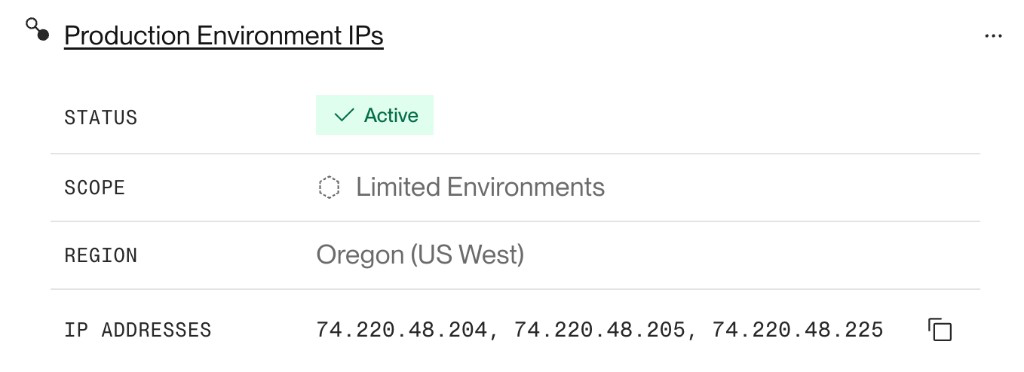
-
All IPs in a set belong to the same region, which you select during creation.
- Only services in the selected region can use the IPs for outbound traffic.
-
You can scope an IP set to specific environments in your workspace, or to your entire workspace.
- An environment-scoped IP set always takes precedence over a workspace-level IP set, if both would apply to a particular service.
-
A service's outbound requests might use any IP in its assigned set.
-
Render bills your workspace monthly for each IP set. See pricing.
-
By default, each workspace can have up to 4 dedicated IP sets.
- If you need more, reach out to our support team in the Render Dashboard.
-
You can manage dedicated IP sets via the Render Dashboard, the Render API, or the Terraform provider.
Workspaces without dedicated IPs use Render's default outbound IP ranges, which are shared by other services in the same region.
Creating an IP set
Workspace members with the Admin role can create dedicated IPs with any of the following methods:
-
From your workspace home in the Render Dashboard, click Networking > Dedicated IPs in the left pane.
-
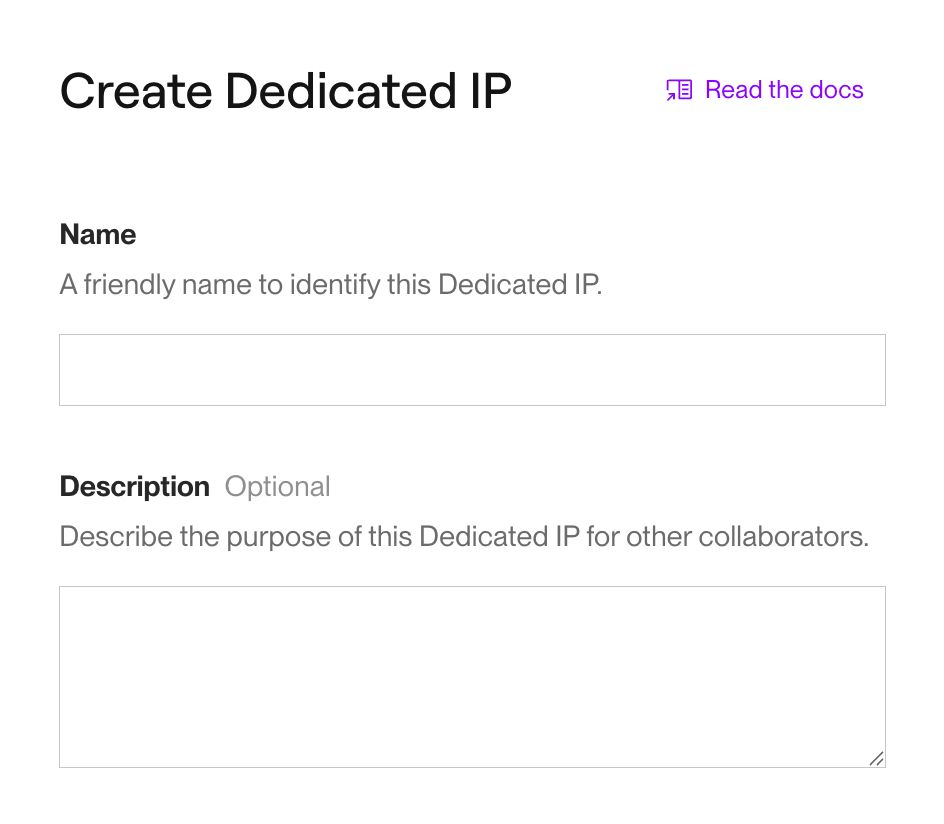
Click + Create Dedicated IPs to open the creation form:
-
Provide a Name for the IP set.
- Optionally add a Description for your team's reference.
-
Select the IP set's Region.
- Only services in the selected region can use the IPs for outbound traffic.
- You can't change an IP set's region after creation.
-
Under Scope, choose which services will use the IP set:
Scope Description Workspace
All services in the selected region will use the IP set, unless they belong to an environment with its own assigned set.
Limited Environments
Only services in the selected region that belong to a selected environment will use the IP set.
Environments with services in multiple regions are labeled Mixed regions:
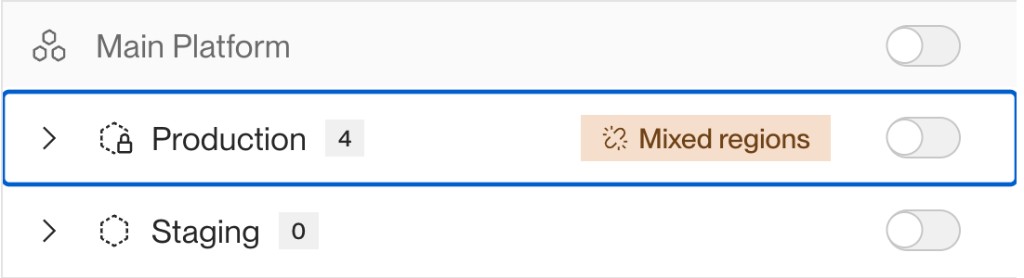
Only services in the same region as the IP set will use it for outbound traffic.
-
Review the monthly total and click Create Dedicated IP.


That's it! Render provisions your new IP set within a few minutes. You can track progress on the status page, and Render sends workspace admins a confirmation email when the IPs become active.
Using the Render API, send a request to the Create Dedicated IP endpoint.
Provide your workspace ID, region, and name in the request body:
Include environmentIds to scope the IPs to specific environments, or omit it to scope the IPs to your entire workspace.
You can now add your new IPs to external allowlists to ensure uninterrupted connectivity.
Checking your service's outbound IPs
After you create an IP set, you can confirm that your services are using it with the following steps:
-
From your workspace home in the Render Dashboard, click a service to open its details page.
-
Open the Connect dropdown in the upper right.
-
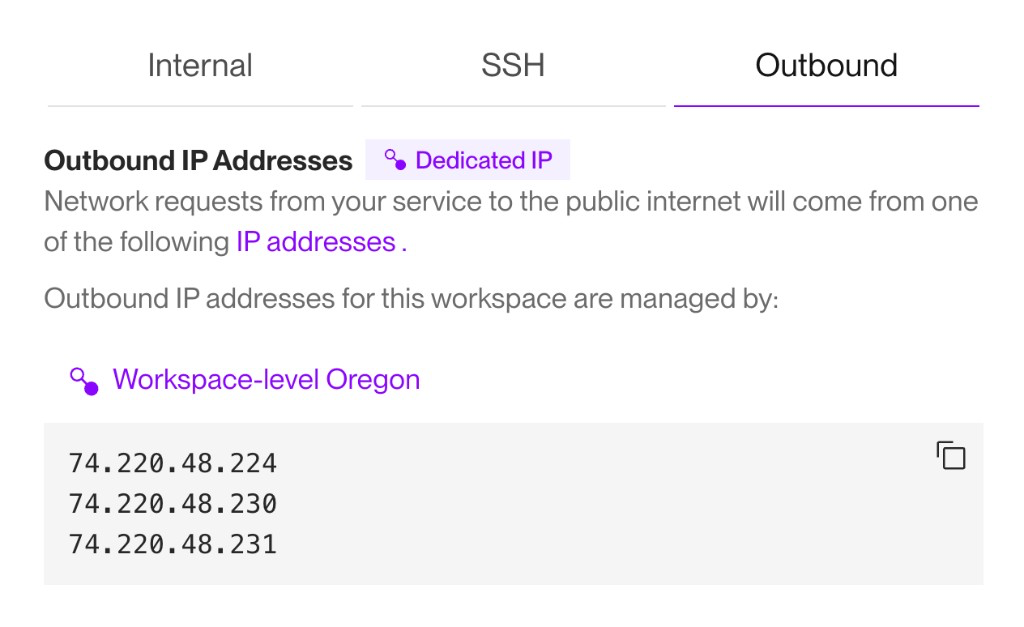
Switch to the Outbound tab. If your service is using a dedicated IP set, its name appears above the list of IP addresses:

Managing IP sets
From your workspace home in the Render Dashboard, click Networking > Dedicated IPs in the left pane.
Here you can view each IP set's name, region, scope, status, and IP addresses:

You can also list your dedicated IP sets via the Render API.
Editing a set
If you change the scope of a dedicated IP set, services that no longer match that scope revert to using Render's default outbound IP ranges.
-
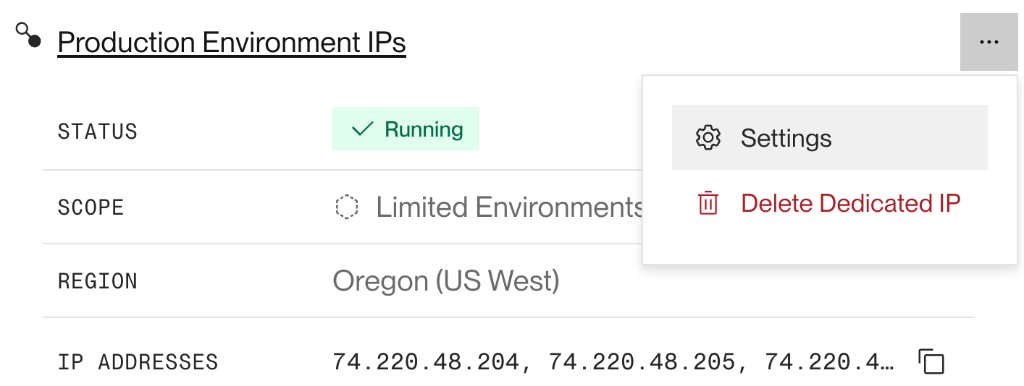
Click the ••• menu on the dedicated IP set you want to edit.
-
Click Settings. The page displays your current configuration.
-
Click Edit to modify the Name, Description, or Scope of your dedicated IP set.
-
Click Save to apply your changes.

Use the Update Dedicated IP API endpoint. All fields are optional, and any omitted fields are left as is:
To switch from environment-scoped to workspace-scoped, pass "environmentIds": [].
You can't change an IP set's region after creation. To move an IP set to a different region, delete the existing set and recreate in your desired region.
Deleting a set
Deleting an IP set reverts affected services to Render's default outbound IP ranges.
If external systems allowlist your dedicated IPs, update those allowlists before deleting the set.
-
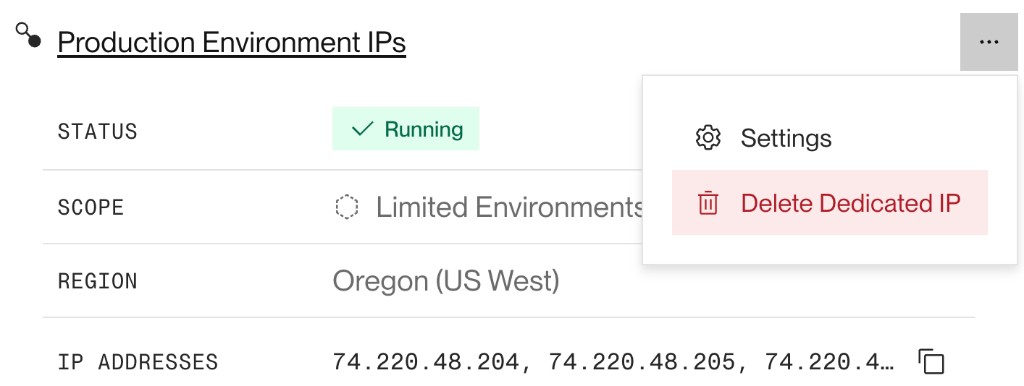
Click the ••• menu for the dedicated IP set you want to delete and click Delete Dedicated IP.
-
Follow the on-screen instructions to confirm the deletion.

Use the Delete Dedicated IP API endpoint with the dedicated IP set's ID.
If you delete an IP set in the middle of a billing period, Render prorates your bill accordingly.
IP set status
The Render Dashboard displays one of the following statuses for each of your workspace's IP sets:
| Status | Description |
|---|---|
|
Provisioning |
Render is creating and assigning your dedicated IP addresses. |
|
Creating |
Render created your IP resources, but not all gateways are ready yet. |
|
Active |
Dedicated IPs are active and traffic is routed through them. |
|
Failed |
Provisioning was not successful. |
|
Deleting |
The IP set is being removed and traffic is transitioning back to shared outbound IP ranges. |
If a set remains in Pending or Creating for an extended period, verify that the region and scope you selected match your services. If the status does not change, please reach out to our support team in the Render Dashboard.
FAQ
Can I choose my dedicated IP addresses?
No. Render automatically provisions and assigns the IP addresses for each IP set.
My dedicated IPs fall within Render's default outbound IP ranges. Is this expected?
Yes. An IP set can include addresses from one of Render's default outbound IP ranges.
If a dedicated IP overlaps the default range, Render removes it from shared use and reserves it exclusively for your workspace.
How do I migrate from a third-party static IP proxy?
To migrate from a third-party proxy to dedicated IPs:
- Purchase a set of dedicated IPs and wait for Render to provision them.
- Add your new set's IP addresses to your external provider's allowlists.
- Remove the proxy configuration from your application code.
Keep your old proxy IPs in external allowlists until you confirm your new dedicated IPs are working.
What if my environment has services in multiple regions?
Each dedicated IP set only applies to a single region. You can create a separate IP set for each region your services send outbound traffic from.
I have a workspace-level IP set and an environment-scoped dedicated IP set. Which set does my service use?
- If the service belongs to an environment with an environment-scoped IP set, it uses that set.
- Otherwise, it uses the workspace-level IP set.
Do service previews and preview environments use my dedicated IP sets?
Yes. Instances created as part of a service preview or preview environment belong to the same environment as their base service, and they therefore use the same dedicated IP set.
What happens if I change the scope of a dedicated IP set?
Render updates the scope of a dedicated IP set, but propagating those changes across the network may take a while. If your external systems enforce strict allowlists, update those allowlists before or immediately after making changes to a dedicated IP set.
Can I apply multiple dedicated IP sets to the same region in the same environment?
No. Each IP set you create must apply to a unique combination of region and environment. If you try to apply a new IP set to the same environment and region as an existing set, the creation form indicates the overlap:

Which service types support dedicated IP sets?
All service types except static sites support dedicated IPs. Static sites don't initiate outbound traffic, so dedicated IP sets don't apply to them.
Do dedicated IP sets affect inbound traffic?
No. Dedicated IPs control only outbound service traffic to destinations outside of Render. You can restrict which IPs can send traffic to your services by setting inbound IP rules.
Do services use dedicated IP sets while building?
Yes, with one exception. Services use dedicated IP sets for any outbound build traffic, such as package downloads. The exception is Docker image pulls, which use Render's shared outbound IP ranges.
Do all workspaces support dedicated IP sets?
For workspaces created before January 23, 2022, services in the Oregon region do not support dedicated IP sets. Use a third-party proxy such as QuotaGuard as an alternative.