Deploy ParadeDB on Render
Enable PostgreSQL-powered search for your other Render services.
ParadeDB is an open-source search engine built on PostgreSQL. It enables you to run full-text search and BM25 ranking directly in your database using standard SQL.
This tutorial walks through deploying ParadeDB on Render as a private service running PostgreSQL with an attached persistent disk. It requires paid resource types.
It is not currently possible to install ParadeDB directly into a Render Postgres database.
This tutorial instead deploys PostgreSQL as a private service, which doesn't support features like point-in-time recovery and high availability.
After you deploy your ParadeDB instance, you can pull your Render Postgres data into it via logical replication.
Deployment options
Quick deploy
To get up and running quickly, click the Deploy to Render button below. It uses a Blueprint to configure and deploy your ParadeDB private service with the following settings:
| Setting | Value |
|---|---|
|
Docker image |
|
|
Region |
Oregon |
|
Starting compute plan |
|
|
Starting disk size |
10 GB |
To customize any of the above (including to deploy to the same region as your existing services), instead perform a Dashboard deploy.
After your deploy completes, you can connect to your ParadeDB instance.
Dashboard deploy
To fully customize your ParadeDB deployment, do the following:
-
In the Render Dashboard, click New > Private Service.
-
Under Source Code, select Existing Image and provide the following Image URL:
-
Click Connect. The rest of the service creation form appears.
-
Select a Region and Compute Plan for your ParadeDB service.
- Make sure to deploy to the same region as your services that will connect to ParadeDB.
- We recommend using the
1c-2gcompute plan or higher.
-
Under Environment Variables, add the following:
Key Value Description POSTGRES_USERparade_adminYour database superuser name.
POSTGRES_PASSWORD[Set a secure password.]
Your database superuser password.
POSTGRES_DBparadedbThe name of the default database.
-
Expand the Advanced dropdown. Under the Disk section, click Add disk.
-
Set your disk's Mount Path to the following:
-
Set your disk's initial Size as needed for your dataset. You can increase this value later, but you can't decrease it.
-
-
Click Deploy Private Service to start the initial deploy.
You're all set! Your ParadeDB instance will be up and running as soon as the deploy completes. Next, learn how to connect to your ParadeDB instance.
Connecting to your ParadeDB instance
SSH connections
Your ParadeDB instance supports shell connections from your terminal or the Render Dashboard. To get started, see SSH and Shell Access.
Starting a psql session
After connecting over SSH, start a psql session with the following command:
To test out functionality, you can create a table with mock data. Run the following commands from your psql session:
The output of your SELECT command should look like this:
Internal service connections
To connect to your ParadeDB instance from your other Render services in the same region, use a connection URL with the following format:
-
Replace
{POSTGRES_PASSWORD}with the password you set for your ParadeDB instance. -
Replace
{PRIVATE_HOSTNAME}with your ParadeDB instance's hostname, available from its Connect dropdown in the Render Dashboard: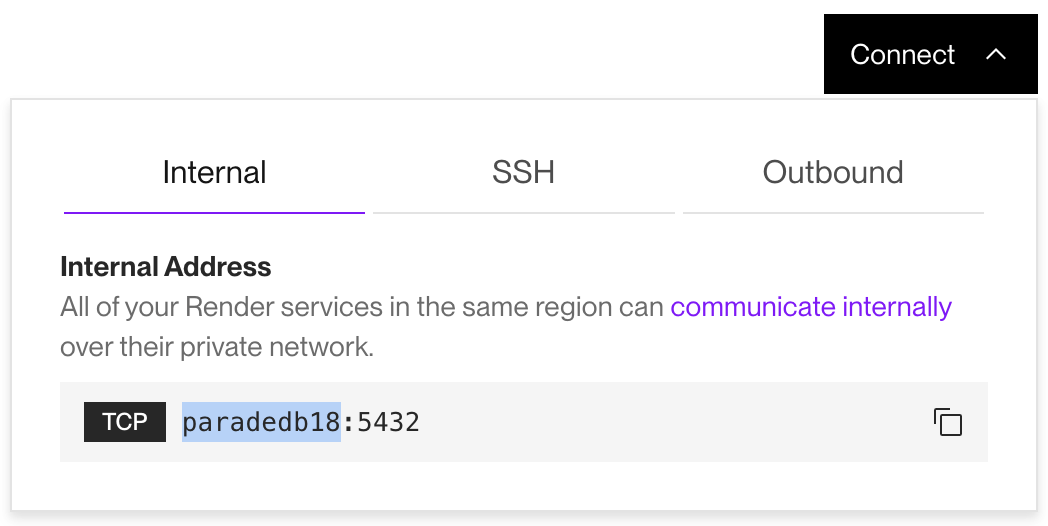
In the screenshot above, the hostname is
paradedb18.

Set this URL as an environment variable (e.g., DATABASE_URL) in your other Render services. You can share this value across multiple services using an environment group.
Logical replication from Render Postgres
You can sync tables from a Render Postgres database to your ParadeDB instance via logical replication. Enabling logical replication requires contacting Render's support team.
- Follow the instructions described in Logical Replication with Render Postgres.
- After logical replication is enabled, follow the logical replication instructions in the ParadeDB documentation, starting with "3. Bootstrap the Schema on ParadeDB."
- In the context of this tutorial, "publisher" refers to your managed Render Postgres database.